Setting up the Workspace
Workspace folder for the lab exercises is hosted on this GitHub repository for reference.
For saving the work on GitHub (Optional)
If you wish to save the work on GitHub, create a new repository on your GitHub account using this repository as a template.
Clone the workspace
Start a bash terminal by pressing the CTRL + ALT + T keys. Follow the steps below and run the
commands in this window.
Download the workspace folder by cloning the git repository in the home/ directory. Replace
the <workspace-name> field with a name identifiable to your group.
git clone https://github.com/ENEE467/lab-workspace.git ~/<workspace-name>
Also make sure to use the URL of your repository instead if applicable.
Opening the workspace in Visual Studio Code
Use Open Folder option from the File menu in VSCode or use the shell command.
code ~/<workspace-name>
Then either click Reopen in Container from the pop-up at the bottom-right part of the window.
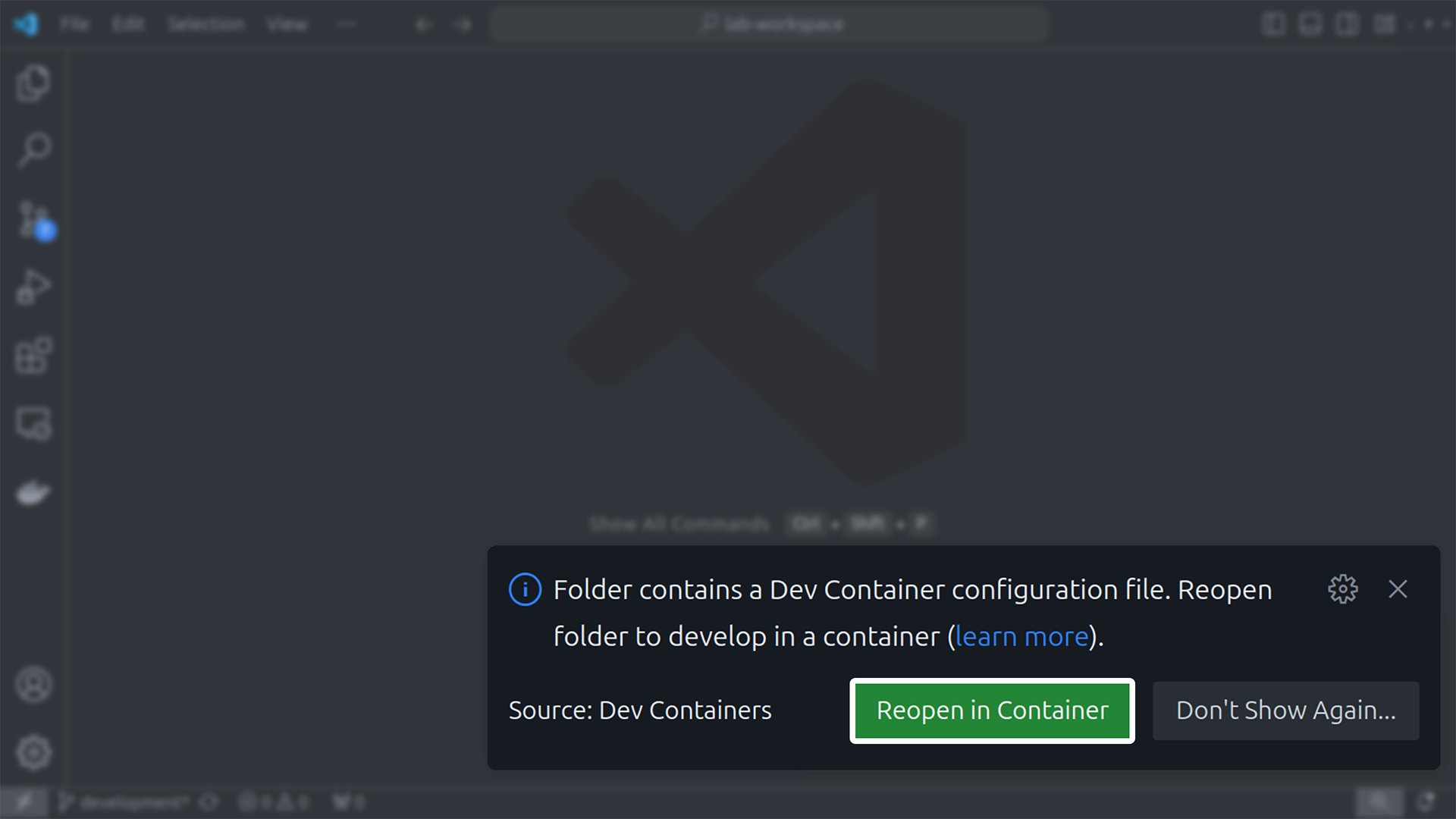
Opening in Dev Container through pop-up
Or click the remote button at the bottom-left corner of the window in case you missed the pop-up.
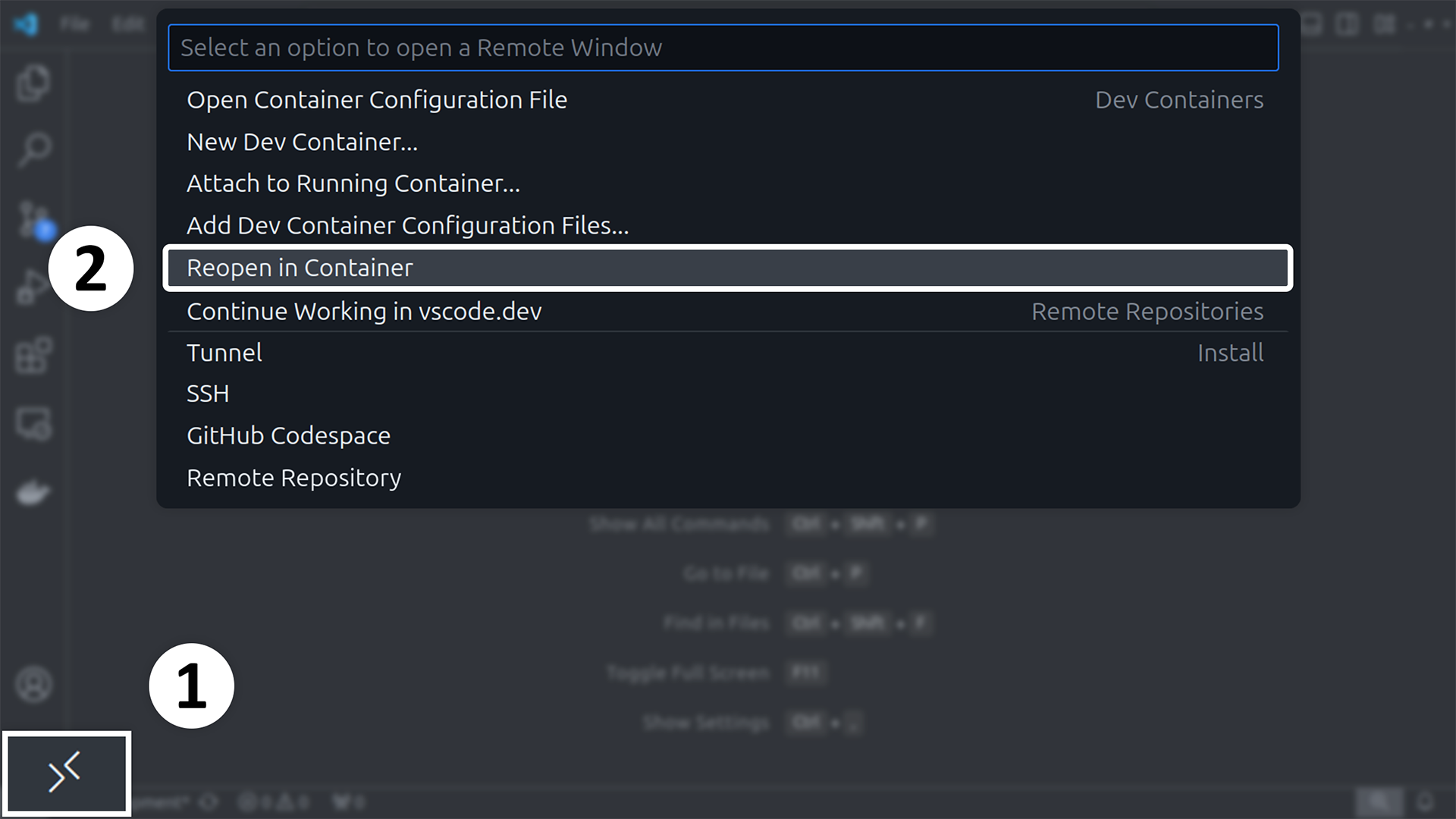
Opening in Dev Container using remote button
Always select the ral-lab configuration when doing the exercises on a lab computer.
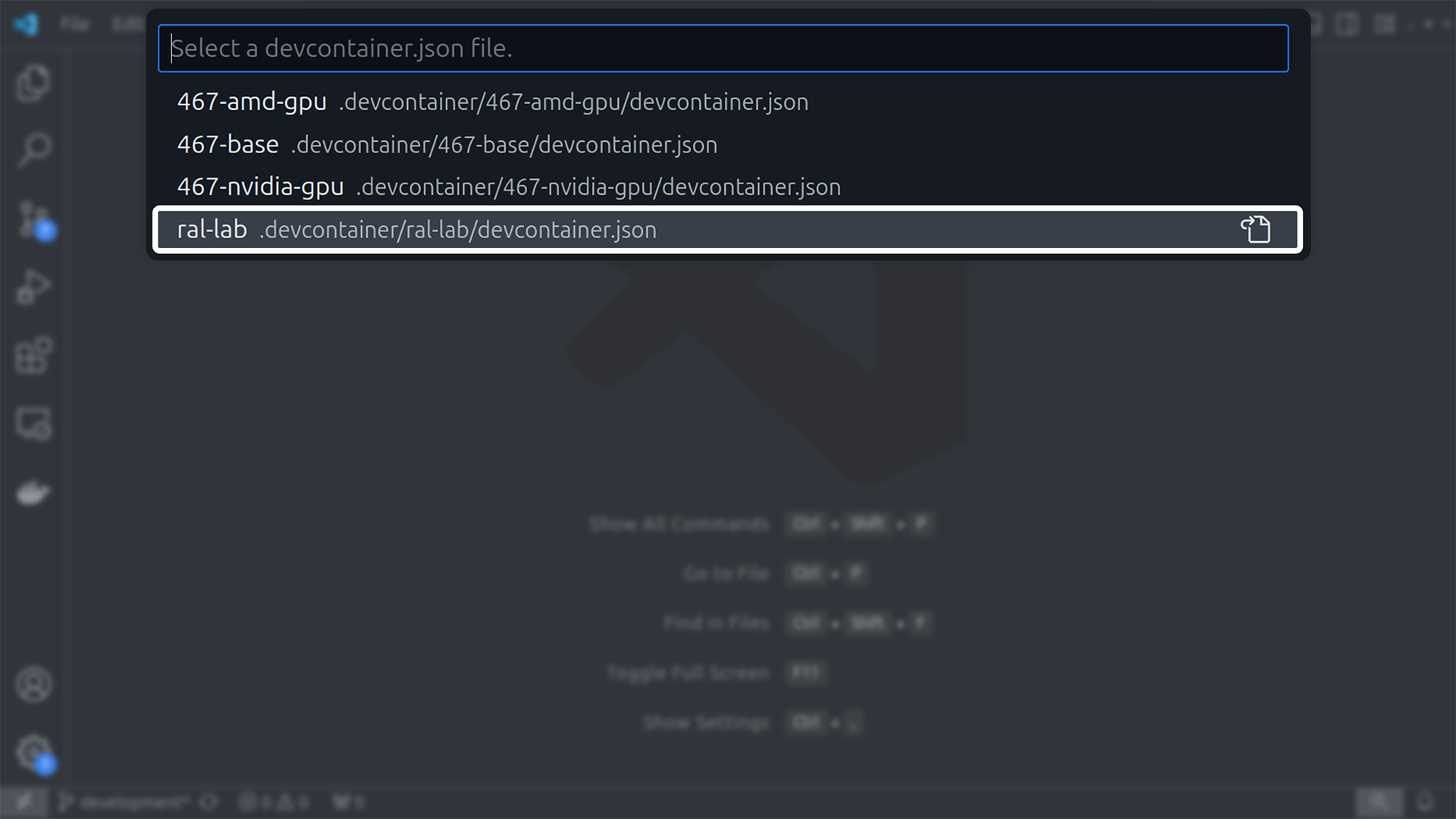
Selecting the configuration on lab computer
The container should start and execute the setup script which primarily involves building the packages.
Finally, source the terminal before use just for the first time.
source ~/.bashrc
Note
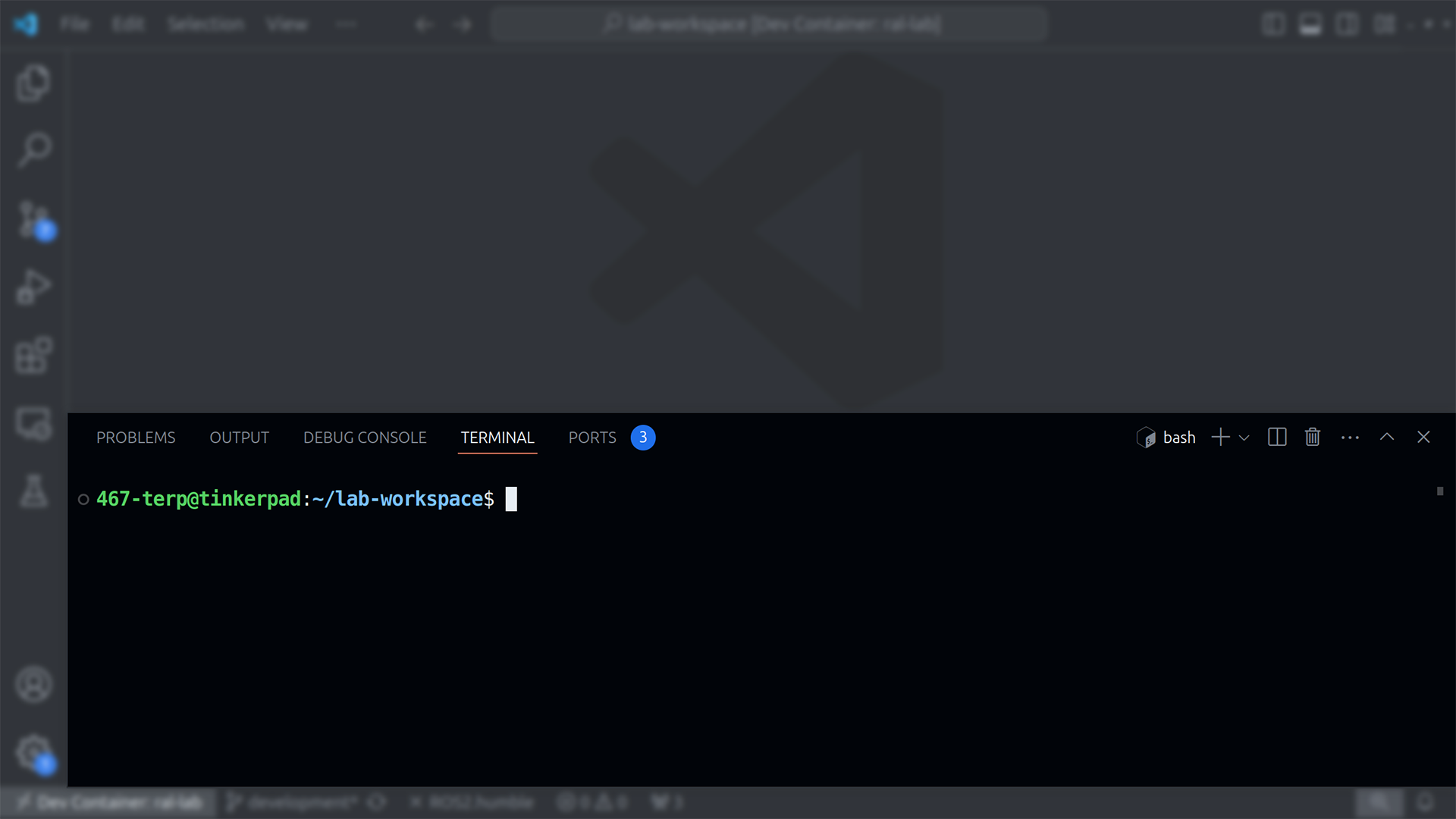
VSCode Terminal
After configuring the container, a terminal should automatically start at the bottom of the
VSCode window. If it doesn’t, press Ctrl + ` or go to View > Terminal to open it.
You will use this terminal to execute most of the commands in the following lab exercises.